How to Install a Grok Bot Template (and What It Actually Copies)
- How to install a Grok Bot template: open the template link, choose "Add to Grok Bot," review what it includes, then choose "Add Bot."
- A template copies a bot's instructions, relevant memories and skills, and specific plugins into a new, separate bot in your account.
- It does not copy custom code, secrets, private skills or non-standard plugins, and you have to reinstall its plugins. Read before you click.
If you just clicked a template link and you are not sure what will happen when you add it, this guide is for you. Here is how to install a Grok Bot template, what it brings with it, and what it leaves behind.
The short version: a template is a recipe, not a clone of someone else's bot. You get the instructions to build your own copy, and nothing of theirs that is private.
How do you install a Grok Bot template?
Open the template link, choose "Add to Grok Bot," review the context and integrations it lists, and then choose "Add Bot." That creates a new, separate copy of the bot in your account that you control, according to the official templates guide.
Step by step:
- Open the template link. Someone shares it with you, or you find it on a bot's page.
- Choose "Add to Grok Bot."
- Review the context and integrations. This is the screen to slow down on. It shows what the bot is told to do and which apps it wants to connect.
- Choose "Add Bot." A new bot appears in your account.
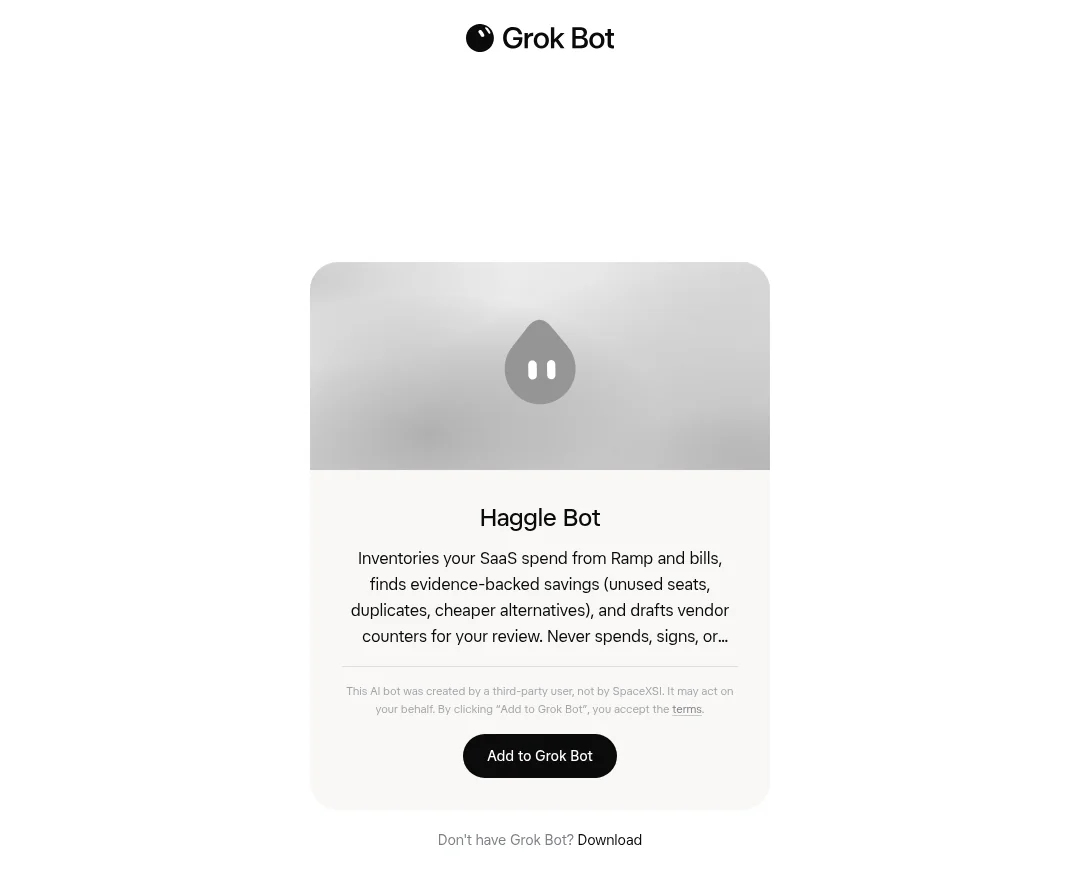
One question to settle before you start: Free and Plus don't include Grok Bot, according to the official Grok Bot plan docs. You need a plan that includes it, such as Premium, Super or Ultra on The X Subscription, or a legacy Cursor plan that includes Grok Bot, and you need the Grok Bot app to finish adding a template.
Want to try it on a real example? The Daily Email and Calendar Brief page shows a template I built that works from pasted text before you connect anything.
What does a template actually copy?
A template copies the bot's instructions, its relevant memories and skills, and specific plugins, and installing it creates a distinct new copy in your account that is separate from the creator's. The official guide calls a template "a recipe, not a meal."
Here is what each of those parts means in plain words:
- Instructions. The bot's job description: what it does, how it should work and what it should never do.
- Relevant memories. Context the creator chose to package so the bot knows its job from day one.
- Skills. Saved instructions for how to do a specific task.
- Plugins. Add-ons that connect the bot to other apps. Specific ones come with the template, but they need to be set up again (more on that below).
| Copied into your new bot | Not copied |
|---|
| --- | --- |
|---|
| The bot's instructions | Custom code and scripts |
|---|
| Relevant memories | Secrets, like passwords or keys |
|---|
| Skills the creator packaged | Personal or private skills and private information |
|---|
| Specific plugins (to be reinstalled) | Non-standard plugins, such as MCP servers |
|---|
Source: the official templates guide, dated Sep 8, 2026.
What is not copied?
Custom code and scripts, secrets, personal or private skills, private information, and non-standard plugins such as MCP servers stay behind. The plugins that are included still have to be reinstalled by the new bot, so expect a little setup after you click Add Bot.
Why each of these matters to you:
- No secrets. You do not get the creator's passwords or keys, and they do not get yours. You will connect your own accounts.
- No private skills or information. Anything the creator kept private stays with them.
- No custom code or scripts. If a bot relied on its own code, that part will be missing from your copy.
- No non-standard plugins. An MCP server is a custom connection to another tool. Those do not come along.
- Plugins need reinstalling. Even the plugins that are included have to be reinstalled by your new bot.
The guide also says more complex templates may need extra setup, so a bot that touches several apps will likely ask for more.
What should you check before you click Add Bot?
Read the context and the integrations on the review screen before you add anything. The official guide says to evaluate a template the way you would evaluate skills or software, and to make sure everything is what you expect before installing.
Here is a pre-install checklist. Call it "What to read before you click Add Bot."
- What job does it do? The context should describe one clear job. If you cannot tell what it does, do not add it yet.
- What does it never do? Look for a plain list of actions it will not take, such as sending or deleting.
- Which apps does it want? Read the integrations. Ask whether each one makes sense for the job.
- Does it send anything on its own? For a first bot, prefer one that drafts and waits for your yes.
- What will you need to set up? Plugins to reinstall and accounts to connect. Plan for it before you start.
Every public template I build is made for a stranger: no personal data inside, drafts only, and it works from pasted text before anything is connected. Hold any template to a standard like that.
What setup might be left after installing?
Expect to reinstall the bot's plugins and reconnect any accounts it needs, because a template never carries secrets or logins, and more complex templates may need extra setup, according to the official guide. A template that works from pasted text can be tried before any of that.
A simple order for what to do next:
- Try it with pasted text first, if the template supports that. You will see how it works before you connect anything.
- Reinstall the plugins it asks for, one at a time.
- Connect only the accounts the job needs.
- Run one real task by hand before you put it on a schedule.
If you are new to Grok Bot in general, Grok Bot Tutorial for Beginners teaches one real task per lesson. If you want a short list of which templates to start with, see The First 3 Grok Bots Every Business Owner Should Install.
How do you share one of your own?
Open your bot's settings and choose "Share as Template," then pick Team or Public and choose Publish, because nothing goes live until you do. After that, you copy the link and share it with whoever should install it, according to the official templates guide.
Step by step:
- Open the bot's settings.
- Choose "Share as Template."
- Pick who can see it: Team or Public.
- Choose Publish. Nothing is shared before this step.
- Copy the link and send it to whoever should install it.
Before you publish, remember what a template carries: your bot's instructions, relevant memories, skills and specific plugins. Secrets and private information are not included, but read your own instructions as a stranger would before you share them.
If you want a set of ready-to-install bots, in order, that look for money before they ask you to spend more of it, see The Payback Roadmap.
FAQ: how to install a Grok Bot template
Does installing a template change the creator's bot?
No. The official templates guide says installing creates a distinct new copy in your account. Your copy and the creator's bot are separate.
Will I get the creator's passwords or logins?
No. Secrets are not included in a template. You connect your own accounts after you install.
Why is my new bot asking me to set up apps again?
The official guide says included plugins have to be reinstalled by the new bot. Non-standard plugins, such as MCP servers, are not included at all.
Can I install a template on any plan?
Free and Plus don't include Grok Bot, according to the official Grok Bot plan docs. You need a plan that includes it, such as Premium, Super or Ultra on The X Subscription, or a legacy Cursor plan that includes Grok Bot, and you need the Grok Bot app to finish adding a template.
How do I know a template is safe to add?
The official guide's advice is to evaluate a template like you would evaluate skills or software. Read its context and integrations, and make sure everything is what you expect before you choose Add Bot.
This bot is one piece of a full AI team. See how I run my business with a team of Grok bots. The AI Chief of Staff: How I Run My Business With a Team of Grok Bots